トーナメント表とリーグ戦表(総当たり表)を作って、PNG画像やPDFで保存・印刷できるWindows向けソフト「BracketMaker」を、v1.1.0にアップデートしました。
今回のアップデートで、勝ち上がりの赤線、各試合の日時とスコア、PDF保存、リーグ戦の◯×と集計などを追加しました。新しい使い方と合わせて紹介します。
v1.1.0の主な追加機能
- 勝ち上がりの赤線(「勝」ボタンを押すと線が伸びます)
- 各試合の日時・スコア欄、タイトル欄
- PDF保存(表の大きさに合わせてA4/A3と縦横を自動で選びます)
- 人数が8や16でなくても、不戦勝が自動で入ります
- リーグ戦の◯×入力と、勝・敗・分・勝点・順位の集計(必要なときだけオンにできます)
- 表の拡大・縮小、チーム名の枠の色と枠線の切り替え、サンプル表示、全クリア
使い方
1. 表を作る
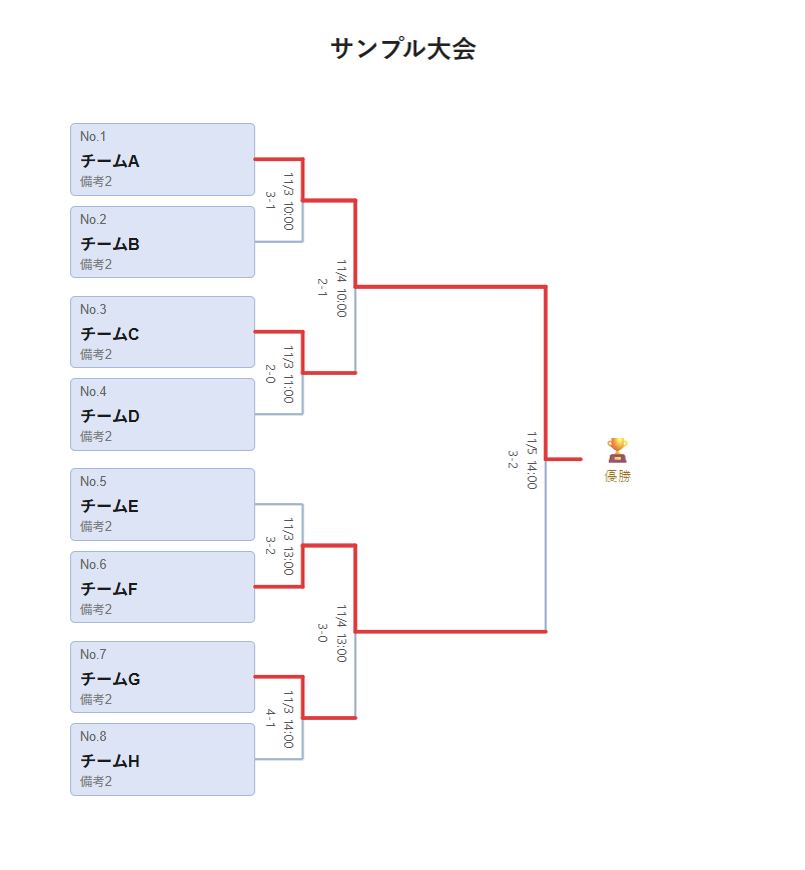
参加人数を入力して「表を作成」を押し、各枠にチーム名(必要なら備考)を入力します。表示形式は3種類から選べます。
横(通常)
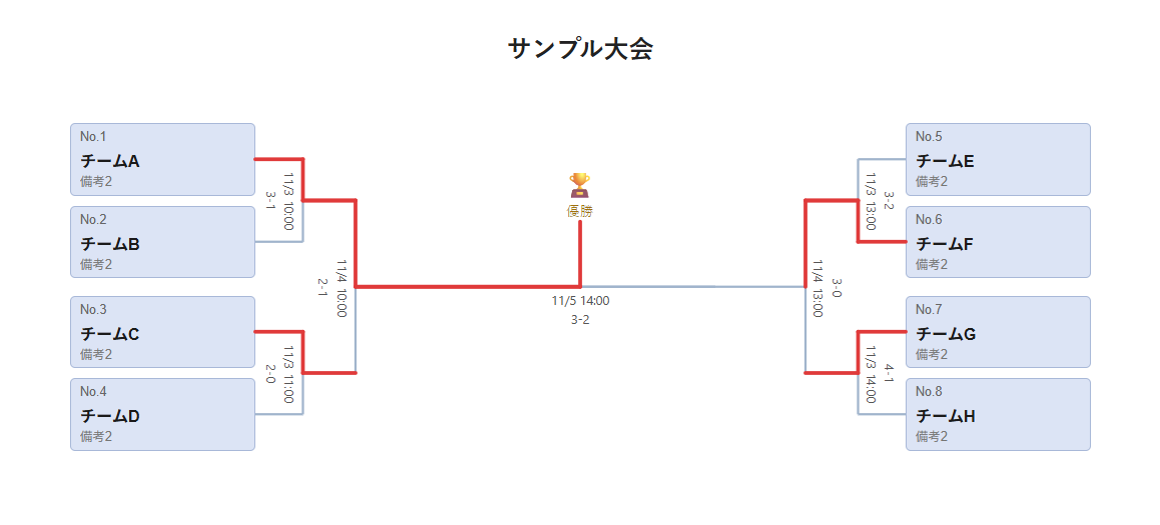
横(左右型) ― 優勝を中央に置く、左右対抗の形式です。
縦
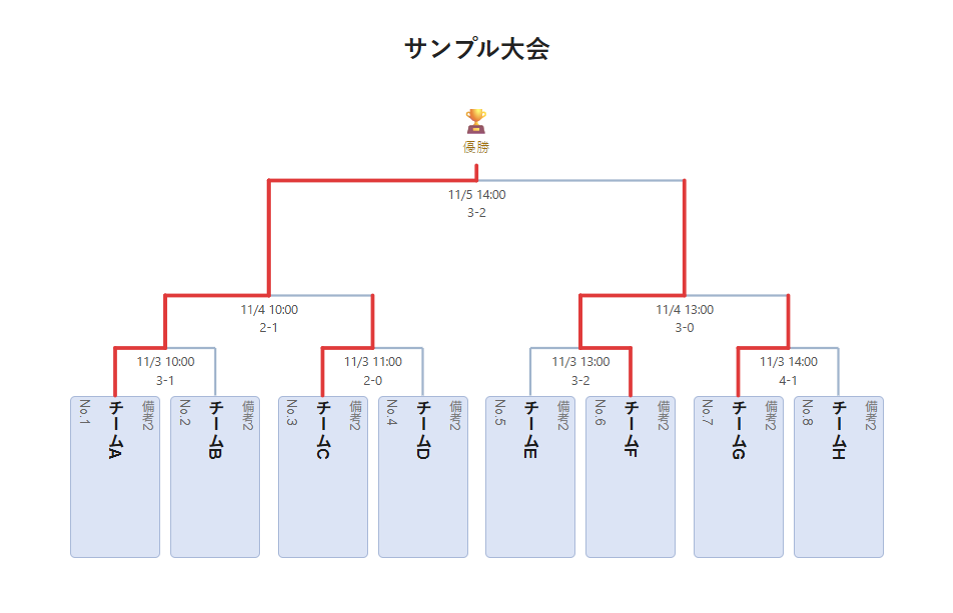
※画像は「サンプル表示」で出した例です。
2. 日時・スコア・勝ち上がりの赤線を入れる
- 各試合の線のすぐ横に、日時とスコアを入力できます。
- 各チームの枠の右下にある赤い「勝」ボタンを押すたびに、そのチームの赤線が1回戦ぶん先へ伸びます。優勝まで進めてもう一度押すと、線が消えます。
- 左右型では、決勝に進んだ2人の線は準決勝で止まり、決勝の勝者だけが優勝まで赤線でつながります。
- 「勝」ボタンは、保存するPNG・PDFには出ません。
組み合わせが決まった時点で、そのまま保存して印刷・配布できます。日時・スコア・赤線は、試合が進んでから足して、もう一度保存すれば大丈夫です。
3. シード・不戦勝を設定する
参加人数が2の累乗(8・16・32…)でないときは、不戦勝が自動で割り当てられます。手動で調整したいときは、同じ対戦カード内の2枠を選んで「選択した2枠をシード化」を押します。
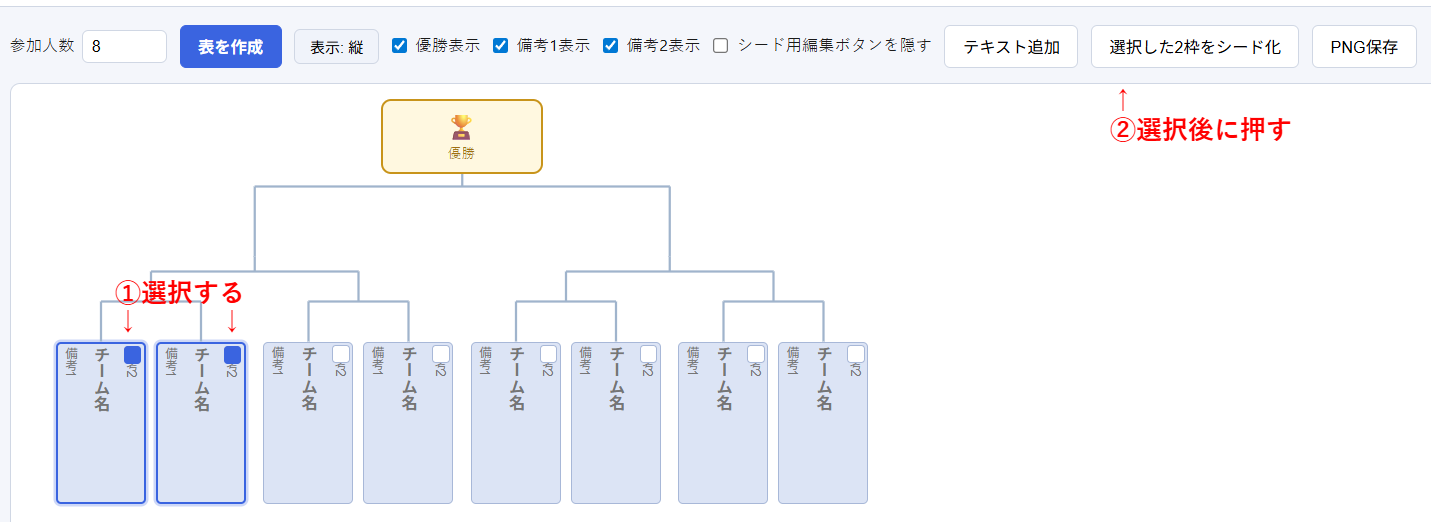
設定すると、対戦相手のいない枠は「シード解除」タグ付きの空欄になり、対戦線も1本のまっすぐな線になります。「シード解除」で元に戻せます。
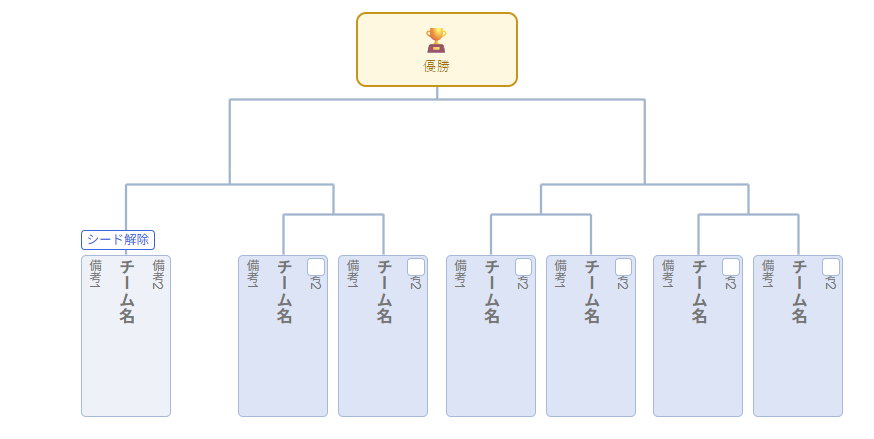
※この画像は手順の説明用です。v1.1.0では、表示のチェック項目は「表示設定」にまとまっています。
4. リーグ戦表を使う
リーグ戦表では、マスをクリックするたびに ◯ → × → △ → 空 と切り替わります。スコアと一緒に表示することも、◯×だけ・スコアだけにすることもできます。
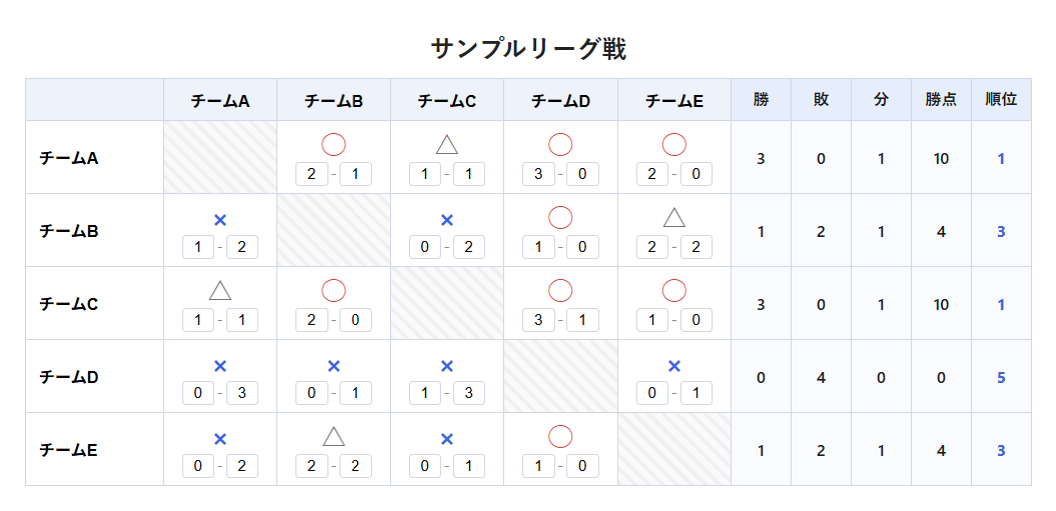
右端の勝・敗・分・勝点・順位の集計は、「表示設定」の「集計表示」をオンにしたときだけ表示されます。使わない場合はオフのままで大丈夫です。勝点のルール(初期は勝3・分1・敗0)も変えられます。
5. 保存する
上部の「PNG保存」「PDF保存」で保存できます。PDFは表の大きさに合わせて、A4/A3の用紙と縦横の向きを自動で選び、1ページに収めます。保存する画面で編集用のボタンが邪魔なときは、「保存用に編集ボタンを隠す」も使えます。
はじめて使うときは「サンプル表示」で完成イメージを確認でき、やり直したいときは「全クリア」でまっさらに戻せます。
ダウンロード
- GitHub Releases
- Booth でも配布しています
役に立ったら、Buy Me a Coffee で応援してもらえると嬉しいです。
BracketMaker v1.1.0 Released ― Updates and How to Use It
BracketMaker is a Windows app for creating tournament brackets and league tables (round-robin charts) and saving or printing them as PNG images or PDFs. It has just been updated to v1.1.0.
This update adds red advancement lines, date/time and score for each match, PDF export, and ○× marks with standings for league tables. Here is what's new and how to use it.
What's New in v1.1.0
- Red advancement lines (click the "W" button to extend a team's line)
- Date/time and score fields for each match, plus a title field
- PDF export (A4/A3 and orientation are chosen automatically to fit your table)
- Byes are assigned automatically, even when the number of teams isn't 8, 16, etc.
- ○× input for league tables, with optional standings (W / L / D / points / rank)
- Zoom in/out, fill color and border options for team boxes, Show Sample, and Clear All
How to Use
1. Create a Bracket
Enter the number of participants, click "Create Bracket", and type the team names (and notes, if needed) into each slot. You can choose from three layouts.
Horizontal
Horizontal Split ― places the champion in the center in a two-sided format.
Vertical
The images were produced with "Show Sample".
2. Add Dates, Scores, and Red Advancement Lines
- You can enter a date/time and a score right beside each match's line.
- Each click on the red "W" button at the bottom right of a team's box extends that team's red line by one round. After it reaches the champion, one more click clears the line.
- In the two-sided layout, the two finalists' lines stop at the semifinal, and only the final's winner is connected all the way to the champion.
- The "W" buttons do not appear in the saved PNG or PDF.
As soon as the matchups are decided, you can save and print or share it right away. Dates, scores, and red lines can be added later as the matches are played, and you can save again.
3. Set Up Seeds and Byes
When the number of participants isn't a power of two (8, 16, 32…), byes are assigned automatically. To adjust them by hand, select two slots in the same match and click "Make selected 2 slots a seed".
Once set, the slot without an opponent becomes an empty field with a "Remove seed" tag, and the match line becomes a single straight line. Use "Remove seed" to undo it.
This image is for illustrating the steps. In v1.1.0, the display checkboxes are grouped under "View Settings".
4. Use the League Table
In the league table, each click on a cell cycles through ◯ → × → △ → empty. You can show it together with scores, or show only ○× or only scores.
The standings on the right (W / L / D / points / rank) appear only when you turn on "Show Standings" in View Settings. If you don't need them, just leave it off. The point values (default: win 3, draw 1, loss 0) can also be changed.
5. Save
Use "Save PNG" or "Save PDF" at the top. For PDF, the app picks A4 or A3 and the orientation automatically to fit the table, and fits it on one page. If the edit buttons get in the way on screen, "Hide Edit Buttons (for saving)" is also available.
If you're trying it for the first time, "Show Sample" shows a finished example, and "Clear All" returns everything to a blank slate whenever you want to start over.
Download
- GitHub Releases
- Also available on Booth
If you find this app useful, I'd appreciate your support via Buy Me a Coffee.
